

Gradescope
Gradescope is an application for drafting and grading quizzes, exams, and other forms of assessment. Gradescope lets you manage a library of questions, including multiple choice, short answer, and equations, and then print custom "bubble sheet" answer forms with sections for the written answers, so that you don't need to worry about your students showing up with test forms. Then, you (or your students!) can scan in their forms, and Gradescope's online tools will automatically grade multiple choice questions, and use machine learning to group short answer- and equation-type responses for quicker grading by you. Finally, if you change your rubric part-way through grading a stack of responses, Gradescope will automatically make those changes retroactive, saving you from having to re-grade the assignments that you've already seen.
Best Practices
- Unfortunately, you can't current import a quiz from Canvas directly into Gradescope; you need to manually recreate each activity.
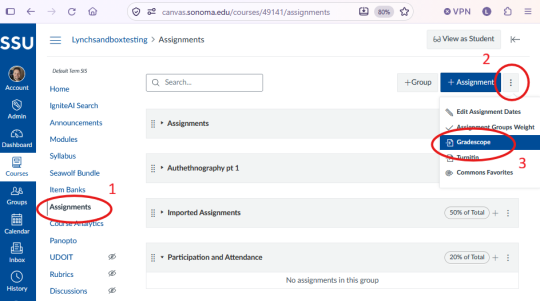
- The easiest way to access Gradescope in Canvas is via the Assignments menu.
- Choose Assignments in the left-hand navigation menu of your course.
- Select the three dots at the top right of the Assignments page to open up the context menu.
- Choose Gradescope. This will take you to the Gradescope application. (See below for more info on the application interface.)
- (not on slide) Once you've created your Gradescope assignment, go to Modules and add it to your chosen module!
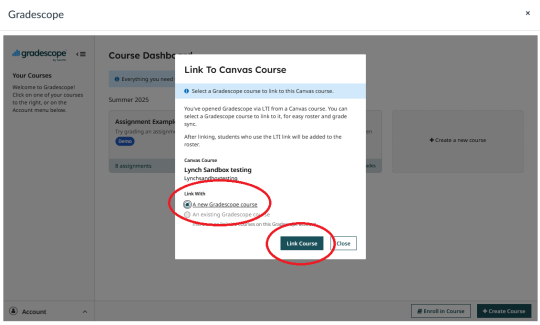
- Gradescope organizes its content into Courses and Assignments, the same way that Canvas does! So the first time you access Gradescope via Canvas, you'll need to connect your Canvas course to a Gradescope "course." If you don't already have a Gradescope course created, then choose to link with "A new Gradescope course." Repeat that process for your first Assignment. Then you should be good to go!
Resources
- Gradescope Instructor Guides. This is a comprehensive set of instructions for teachers using Gradescope.
- Recorded Gradescope demonstration from September 3, 2025.
- Recorded Gradescope demonstration from September 12, 2025.
Get Support
If your question isn’t answered by the above resources, we encourage you to visit CTET either in person or via Zoom, submit a help request, or just email us. We are happy to do a 1-on-1 training or support session with you. You can find our current business hours and contact information, including our Zoom link, on our Contact Us page.
Student Support
CTET only supports faculty, not students. If your students report any issues to you, we would encourage you to look at the issue with them and, once you've documented it, report it to us. Then we can figure out the cause of the problem.
Gradescope maintains support guides for students. However, because Gradescope can be used in many different learning management systems, this documentation can be confusing for a student. Before you send a student to this guide, we recommend that you preview the topic that you want them to read and make sure that it describes the specific situation that they are experiencing.